> ## Documentation Index
> Fetch the complete documentation index at: https://docs.flokitai.com/llms.txt
> Use this file to discover all available pages before exploring further.
# Connect from Claude
> Add FloKit to claude.ai as a custom connector, or to the Claude Code CLI with a token.
FloKit connects to Claude two ways: as a **custom connector on claude.ai** (you sign in
with OAuth — nothing to copy), or in the **Claude Code CLI** with an access token. Both
reach the same read-only server.
`https://api.dashboard.flokitai.com/mcp`
## Option A — claude.ai custom connector
Custom connectors are available on Claude Pro, Team, and Enterprise. You'll sign in to
FloKit and approve access — no token to copy or paste.
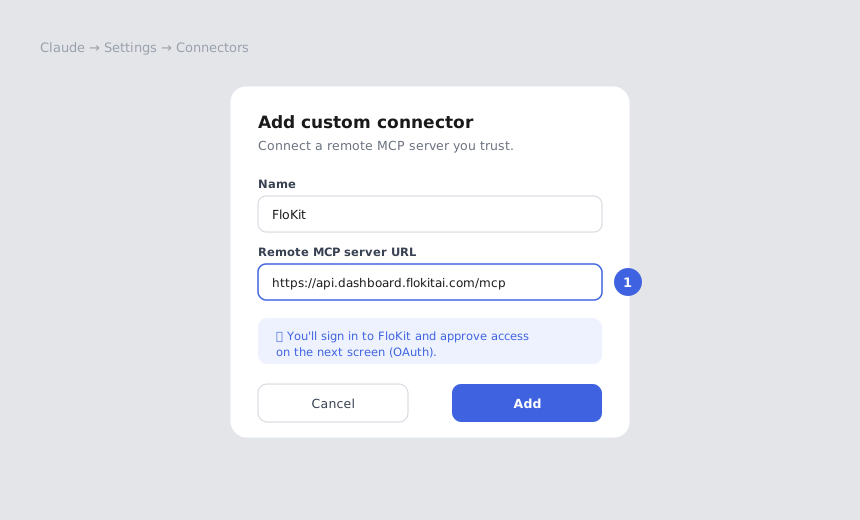
In Claude, go to **Settings → Connectors → Add custom connector**.
Name it **FloKit** and paste the server URL. Claude discovers the rest automatically.
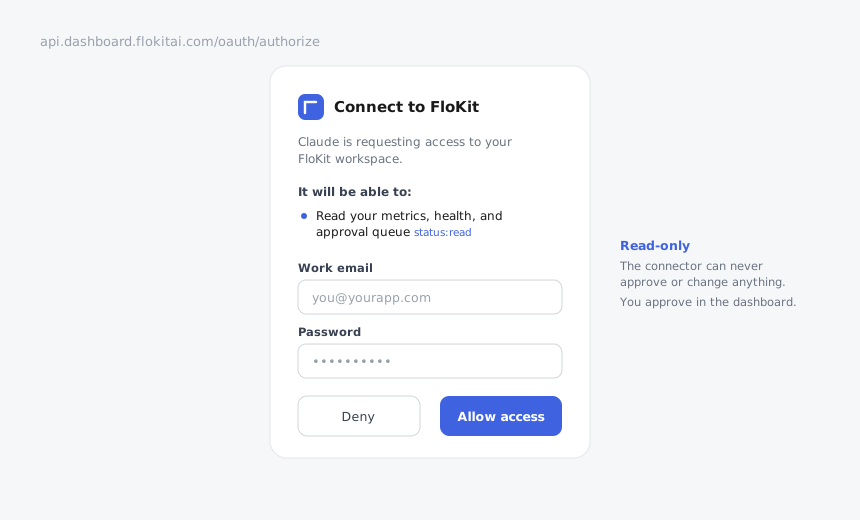
 Claude opens the FloKit consent screen. Sign in with your FloKit work email and click
**Allow access**. The screen confirms the connection is read-only.
Claude opens the FloKit consent screen. Sign in with your FloKit work email and click
**Allow access**. The screen confirms the connection is read-only.
 Back in Claude, try:
```text theme={null}
Give me a daily briefing on my app and anything waiting on my approval.
```
Claude calls `get_status` and `list_pending_approvals` and answers in plain language.
You can also pick the **Daily briefing**, **What's waiting on me**, or **Show me
around** prompt from Claude's prompt menu.
## Option B — Claude Code (CLI)
Claude Code authenticates with a bearer token instead of the browser sign-in.
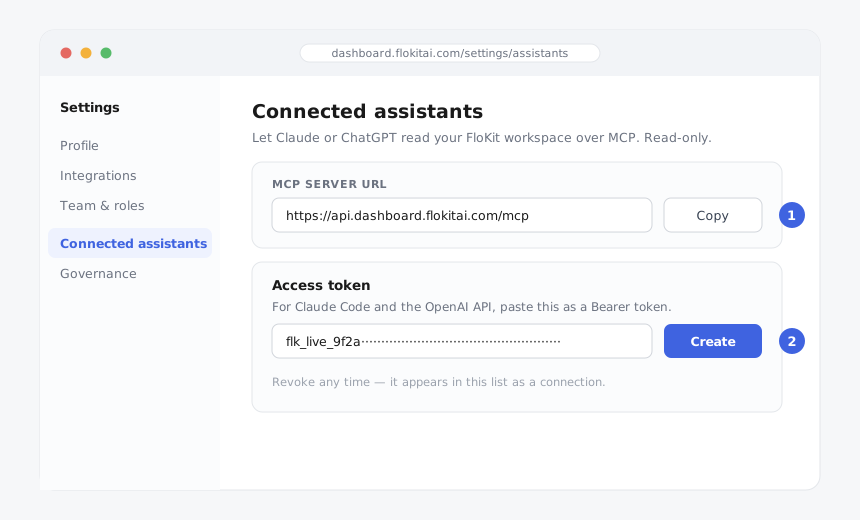
In the dashboard, go to **Settings → Connected assistants** and click **Create** under
Access token. Copy it (it starts with `flk_live_`).
Back in Claude, try:
```text theme={null}
Give me a daily briefing on my app and anything waiting on my approval.
```
Claude calls `get_status` and `list_pending_approvals` and answers in plain language.
You can also pick the **Daily briefing**, **What's waiting on me**, or **Show me
around** prompt from Claude's prompt menu.
## Option B — Claude Code (CLI)
Claude Code authenticates with a bearer token instead of the browser sign-in.
In the dashboard, go to **Settings → Connected assistants** and click **Create** under
Access token. Copy it (it starts with `flk_live_`).
 ```bash theme={null}
claude mcp add --transport http flokit \
https://api.dashboard.flokitai.com/mcp \
--header "Authorization: Bearer flk_live_your_token_here"
```
```bash theme={null}
claude mcp list
```
You should see `flokit` listed. In a Claude Code session, ask:
```text theme={null}
What's going on with my app?
```
Treat the access token like a password — it grants read access to your workspace.
Revoke it any time from **Settings → Connected assistants**; the connection stops
working immediately.
## Troubleshooting
The token was revoked or expired. Create a new one in **Settings → Connected
assistants** and re-run `claude mcp add`, or reconnect the claude.ai connector.
The connector reads the same data the dashboard does, which unlocks after onboarding
completes. Finish onboarding, then ask again.
That's the normal, healthy state — nothing is waiting on you. `list_pending_approvals`
returns an empty queue rather than an error.
```bash theme={null}
claude mcp add --transport http flokit \
https://api.dashboard.flokitai.com/mcp \
--header "Authorization: Bearer flk_live_your_token_here"
```
```bash theme={null}
claude mcp list
```
You should see `flokit` listed. In a Claude Code session, ask:
```text theme={null}
What's going on with my app?
```
Treat the access token like a password — it grants read access to your workspace.
Revoke it any time from **Settings → Connected assistants**; the connection stops
working immediately.
## Troubleshooting
The token was revoked or expired. Create a new one in **Settings → Connected
assistants** and re-run `claude mcp add`, or reconnect the claude.ai connector.
The connector reads the same data the dashboard does, which unlocks after onboarding
completes. Finish onboarding, then ask again.
That's the normal, healthy state — nothing is waiting on you. `list_pending_approvals`
returns an empty queue rather than an error.